




SpinMama App
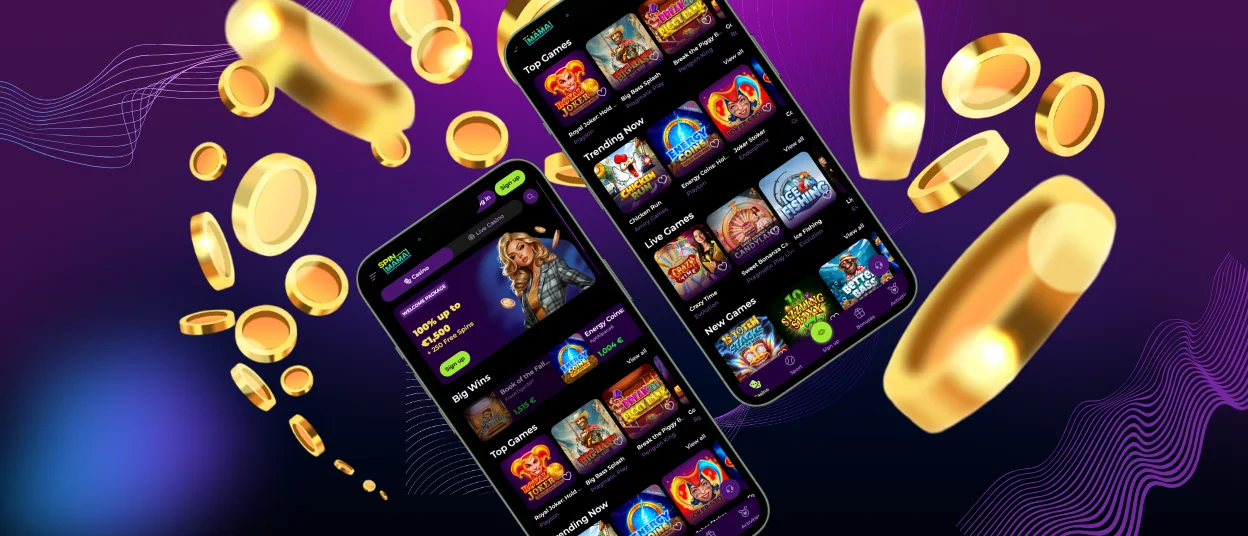
We make mobile play simple because our casino runs in a browser and adapts to your screen. You can play on Android or iOS with the same lobby experience.
Open our mobile version in Safari or Chrome, then choose a game and start playing. For quicker access, you can pin it or add a shortcut icon on your home screen.
When you switch between devices, your preferences and progress are synced, ensuring a consistent experience.



SpinMama App availability
We run SpinMama App as a browser-based casino experience, so you can play without installing a separate native app. It works on Android and iOS devices, and it also runs on Windows and macOS computers.
iOS
SpinMama App works on iPhone and iPad through a mobile browser, so you can play without an App Store download. You can open the casino in Safari or Chrome and use the same lobby flow as on desktop.
For faster access, you can add a shortcut icon to your Home Screen. This makes it easier to launch the site in one tap when you want a quick session.
Android
SpinMama App works on Android through your mobile browser, so you can play without installing anything. Our lobby and games are optimized for Android screens, providing a seamless experience.
You can open SpinMama in Chrome or another modern browser, then browse games and start a session right away. With a stable internet connection, loading stays fast on modern Android devices.
Windows and macOS
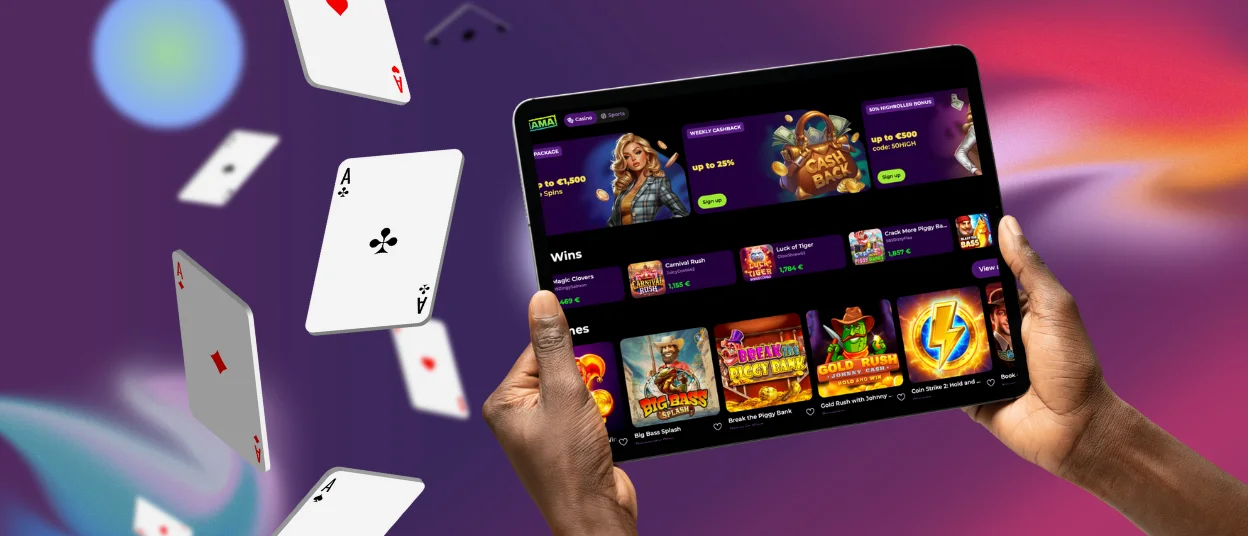
You can use the SpinMama App experience on Windows and macOS in a web browser, so there is no software to install. Our games are available on both desktop and mobile, and the main playing flow stays the same across devices.
On a computer, the larger screen makes navigation easier when you browse categories or search for a specific title by name or provider.
How to play on mobile
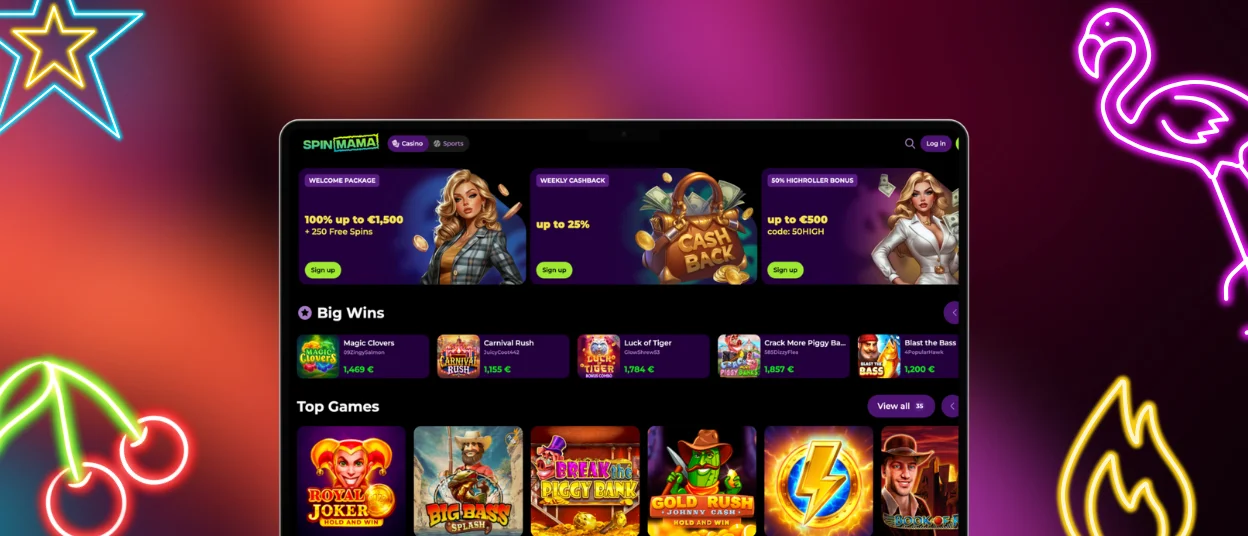
You can play on mobile by opening our casino in your browser and selecting a game from the lobby. The mobile version gives you the same core flow as desktop play.
To find games faster on a smaller screen, we keep navigation simple:
- Search: Use the search bar to look for a game name or a provider.
- Browse: Use the main menu to open game categories and pick a title in a few taps.
If you want to explore first, you can try selected games in demo mode. Real-money play is available after you use your account.
Add SpinMama to your home screen
You can add a SpinMama shortcut to your home screen, so you can open the site like an app. This keeps access quick without downloading anything.
iPhone (Safari)
- Open SpinMama in Safari.
- Tap the Share icon.
- Select Add to Home Screen.
- Confirm the name, then tap Add.
Android (Chrome)
- Open SpinMama in Chrome.
- Tap the Menu icon.
- Select Add to Home screen.
- Confirm, then tap Add.
FAQ
Can I play SpinMama App in landscape mode on my phone?
Yes, you can use landscape mode if your phone has auto-rotate enabled and the game supports it. Some games are designed to stay in portrait mode.
If the screen does not rotate, turn off Orientation Lock on your phone. Then rotate your device and reload the game once.
What happens if I switch to another app or lock my screen during a game?
In most cases, the game pauses and reconnects when you return. If the browser refreshes, you can reopen the title from the lobby.
If a round was already started, you should check your balance after you reconnect. That is the quickest way to confirm the result.
What should I do if a game stays on a loading screen on mobile?
First, reload the page and reopen the game from the lobby. If it still does not load, switch between Wi-Fi and mobile data or try another browser, then contact our support with the game name and time of the issue.
Do I have to download SpinMama App?
No, downloading is not required because we run as a browser-based casino that adapts to mobile screens. You can also add a shortcut to your home screen for faster access.


